Yagi Mechanical® includes many pre-defined tubing sizes based on commonly available items. If you are adding a new material or are using different sizes, you can define tubing in this tab.
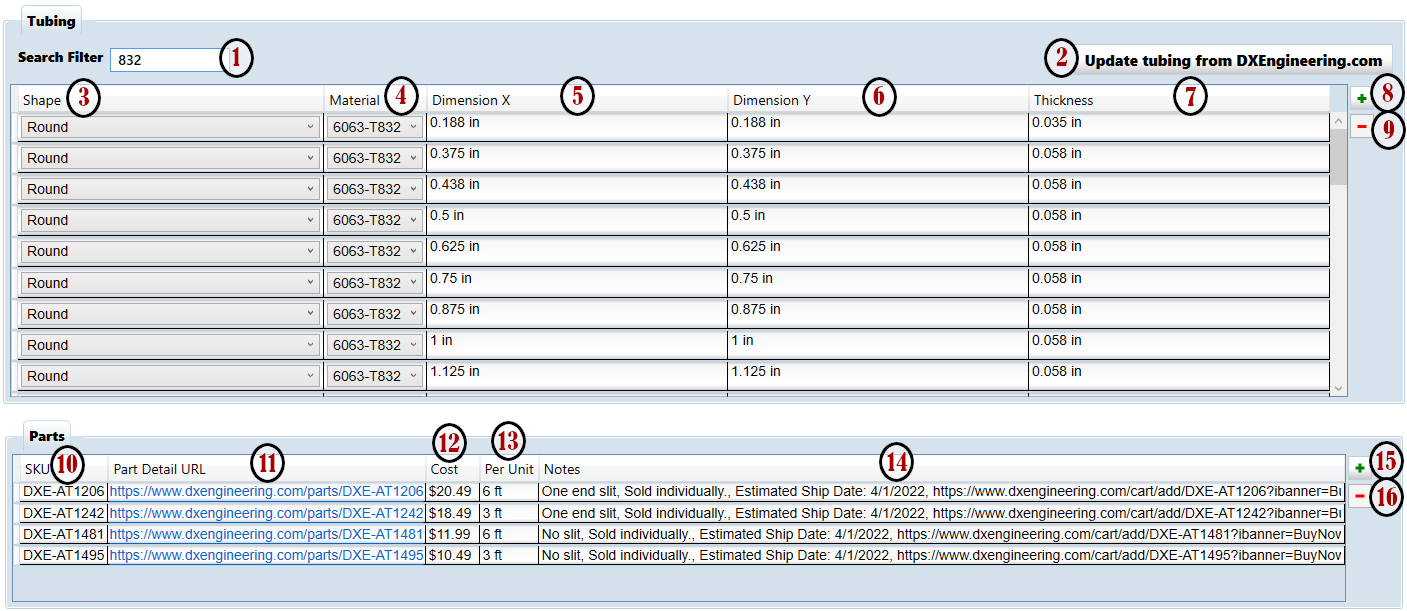
- Search Filter - Type in part or all of a tubing dimension or material name to show just the entries that match.
- Update Tubing from DXE Button - YM has been built to be able to pull down tubing part detail from our website to simplify building a design with available parts. Click this button to reload the data and get the current pricing and ship dates.
- Shape - While the default tubing is Round, you can also specify Ellipse, Rectangle, or Square tubing for your design.
- Material - Here you can select one of the materials defined in the Materials Tab.
- Dimension X - This is the width of the tubing.
- Dimension Y - This is the height of the tubing - the face exposed to the wind.
Note: Round and Square tubing have the same X and Y, so Yagi Mechanical® will automatically change the second value to match when you change one.
- Thickness - Enter in the wall thickness of the tubing.
- Add Tubing Button - Use this to add a new tubing size to YM. The Add Tube window will be displayed where you can select the shape and material and specify the diameter or width/height and the wall thickness.
- Remove Tubing Button - Clicking this will remove the currently selected tubing from YM
Note: Yagi Mechanical® will prevent removing tubing that is in use by the current design and any changes to the tubing will be carried over to the current design if it is in use.
- SKU - This field will display the SKU for DXE tubing or whatever identifier you enter for other tubing.
- Part Detail URL - Here you can see a clickable link for product pages for DXE tubing.
- Cost - The cost for one unit of this tubing is shown here.
- Per Unit - In this field, you can see the length of each piece of the tubing part.
- Notes - This field is for additional information on tubing parts.
- Add Part Button - You can use this to add a new part to YM. The Add Part Window will be shown and allow you to define the SKU, URL, Cost, Per Unit length, and add any needed notes. These parts are referenced in creating the list of tubes and cut detail in the Bill of Materials so it can be very useful to enter the information for whatever parts you include in your design.
- Remove Part Button - This will remove the selected part from YM.