Most of your time in YM will be spent in this tab. While Boom survivability is important, the elements in the antenna design have many more critical requirements and are often much more complex. An element’s taper schedule affects its resonance, weight, and wind stresses - and getting a taper right is important when it typically is the same for all elements in a Yagi antenna. From this tab you have the ability to start, modify, and fine tune your design as needed. The list below calls out all of the available controls and includes important details for using them correctly.
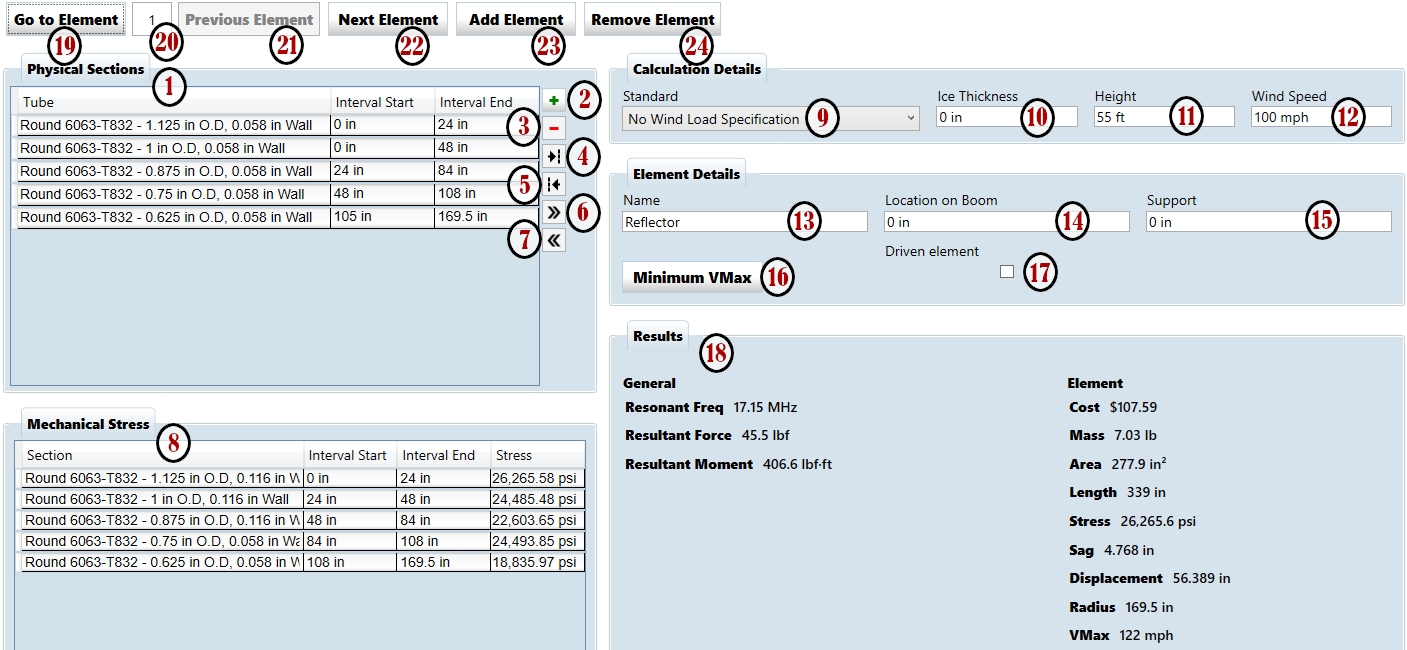
- Physical Sections List - This table shows you the actual tubing sections used in your Element design. Tube is a drop down menu where you can select the specific tubing size and material - it includes a search filter to simplify finding the item you need. Interval Start and Interval End are fields where you define where the tube exists relative to the Boom (note that you are designing half elements and YM does the rest). When a tube is active, an extra line of details will appear below it, showing the Length (Interval End minus Interval Start), Weight, and Mass of just that piece.
- Add Tube Button - Use this button to add another piece of tubing to your design. If an existing tube is selected, YM will add a new piece directly below it and use the same size and material as the selected piece. If no tube is selected, a new line will be added at the bottom and the type will be empty until one is selected. Note that YM will show a red marker at the left end of any entries with no material selected or if the dimensions or location intersect with another piece of tubing. Hover over the marker to see a tooltip that describes the issue and fix the layout to proceed with work on your design.
- Remove Tube Button - When you need to delete a piece of tubing from the current design, select a tube in the list and use this button. It will be removed and all calculations reworked.
- Lengthen Tube Button - Though the Intervals can be edited directly, this button and the next three allow quick fine tuning of the selected tube. Lengthen will add extend the tube by 1” and shift the start interval of the following tubes by the same amount.
- Shorten Tube Button - Pressing this button will remove 1” of length from the currently selected tube and shift the start interval of the following tubes by the same amount.
- Shift Right Button - Move the selected tube right by 1” without changing its length or any of the other tubing in the design. Note that the button is inactive if the shift would cause a gap.
- Shift Left Button - Move the selected tube left by 1” without changing its length or any of the other tubing in the design. Note that the button is inactive if the shift would result in a negative value for the start.
- Mechanical Stress - Here you can see a listing of tubing cross sections used by Yagi Mechanical® to calculate stress points in the design. Interval Start and End show the locations relative to the Boom and the Stress displays the calculated combination of force and moment due to the currently selected wind specifications and speed and stresses from any outboard mechanical sections. The Stress field will be highlighted red if the value exceeds the material’s yield strength.
- Wind Specification - Use this menu to select your desired method of calculating force from the wind on your design. Please see the section on Choosing a Wind Spec for detail on the differences between these standards.
- Ice Thickness - In areas that experience ice and buildup of snow, antennas can exhibit much lower wind survivability due to these additional loads. Use this field to include radial ice to your stress and max wind speed calculations in YM.
- Height - Some wind specs include the height above ground in the calculation to better estimate wind loads - enter a known or expected mount height for your antenna design in this field to account for that in the stress calculations.
- Wind Speed - The value entered here is used in calculating stress values shown in the Mechanical Stress window - YM will also determine an estimated max wind speed based on the other parameters and display it in the Results section.
- Name - Enter a name for the current element to easily identify it. Yagi Mechanical® will include it in the 3D View.
- Location on Boom - This is the location on the Boom where the current Element is connected. If the specified spot is beyond the length of the current Boom, YM will automatically extend the Boom to this point.
- Support - Enter in the distance between the Boom and the location where guys or trussing are attached to the Element. This portion of the design will be excluded from the stress calculations - not that there will be no stress remaining in an actual install but it is expected to be reduced dramatically and that the focus in YM should be tubing that is beyond this point.
Note: Support will be automatically adjusted if changes to the tubing result in the specified location being beyond the length of the Element.
- Minimum VMax Button - Press this button to put the calculated max wind value from the Results section into the Wind Speed field. Doing so will allow you to see the stress values for that wind load.
- Driven Element Checkbox - Use this marker to tell YM which element is meant to be driven. This is used in outputting files to electrical design programs and will show the resonant frequency on the Bill of Materials tab.
- Results - Here you can view additional values determined by Yagi Mechanical® aside from the Stress shown in the Mechanical section.
- Resonant Frequency - YM calculates the resonant frequency of the current Element.
- Resultant Force - This shows the total force on the mast or tower from the Boom and Elements.
- Resultant Moment - The total moment exerted on the mast or tower by the Boom and Elements.
- Cost - Estimated material costs for tubing included in this design. Tubing loaded from the DXE website will include pricing for available parts, but cost for other tubing parts can be entered manually in the Tubing tab.
- Mass - This gives the total weight of all tubing.
- Area - Here you can see the total wind area.
- Length - Shows the total length.
- Stress - YM gives the maximum stress value for this element given the wind load specification and wind speed.
- Sag - This shows the maximum sag.
- Displacement - Here you can see the maximum lateral displacement of the Element.
- Radius - The longest distance on the antenna from the Mounting Point is the turning radius of the design.
- VMax - Based on the current wind load and speed settings, this is the maximum estimated speed that can be withstood before tubing deforms permanently or breaks. Yagi Mechanical® stops calculating when stress is within 1% of the material’s yield strength or if it hits 999 mph.