Check the details below for information about each of the menu items in Yagi Mechanical®.
File Menu
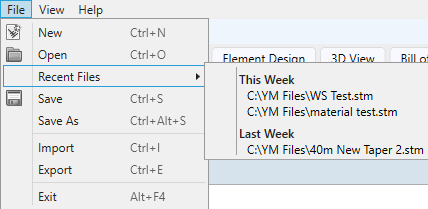
- New - This or the same icon in the quick toolbar will start a new blank YM file for you.
- Open - Read in an existing YM file by clicking this item. Please see info on File Revisions.
- Recent Files - Here you can see a list of files that have been viewed recently - click the file to reload it.
- Save - Use this or the toolbar icon to save the current design.
- Save As - This option is useful if you want to save the current design as a different file name rather than overwrite any existing file.
- Import - Yagi Mechanical® can read in files from older programs, Yagi Optimizer or Yagi Stress.
- Export - Use this item to export the current design to Antenna Optimizer, EZNEC, NEC-2, Yagi Optimizer, or Yagi Stress.
- Exit - Close out of YM.
View Menu
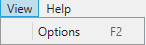
The only item here in the View menu is YM Options - click to see the detail on the settings available there.
Help Menu
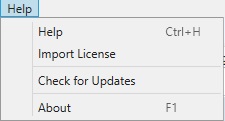
- Help - Clicking this will bring you to this documentation.
- Import License - Select this item to import your registration information into YM and make all features available. The license file will be copied, so you can save the original anywhere you like for use in reinstalling in the future.
- Check for Updates - You can use this selection to force YM to check for updates. When starting Yagi Mechanical® the program will automatically check for updates and prompt you to update. Choosing ‘no’ from the prompt or a lack of an update will allow YM to run normally. If an update is downloaded, the program will exit and restart the new version of YM automatically.
- About - Here you can view information about the current YM version, including licensing and 3rd party packages.