Part of designing antennas is understanding how the pieces fit together, both for tubing sections in an element taper and placing the elements on the boom. Yagi Mechanical® provides a useful tool for this with the 3D View tab - this 3D model of your design can be viewed from any angle and zoom level and it provides tools for overlaying information as well as displaying the elements and boom as cross-sections to see the detail on how nested tubing works. This list details the options, display components, and included camera controls.
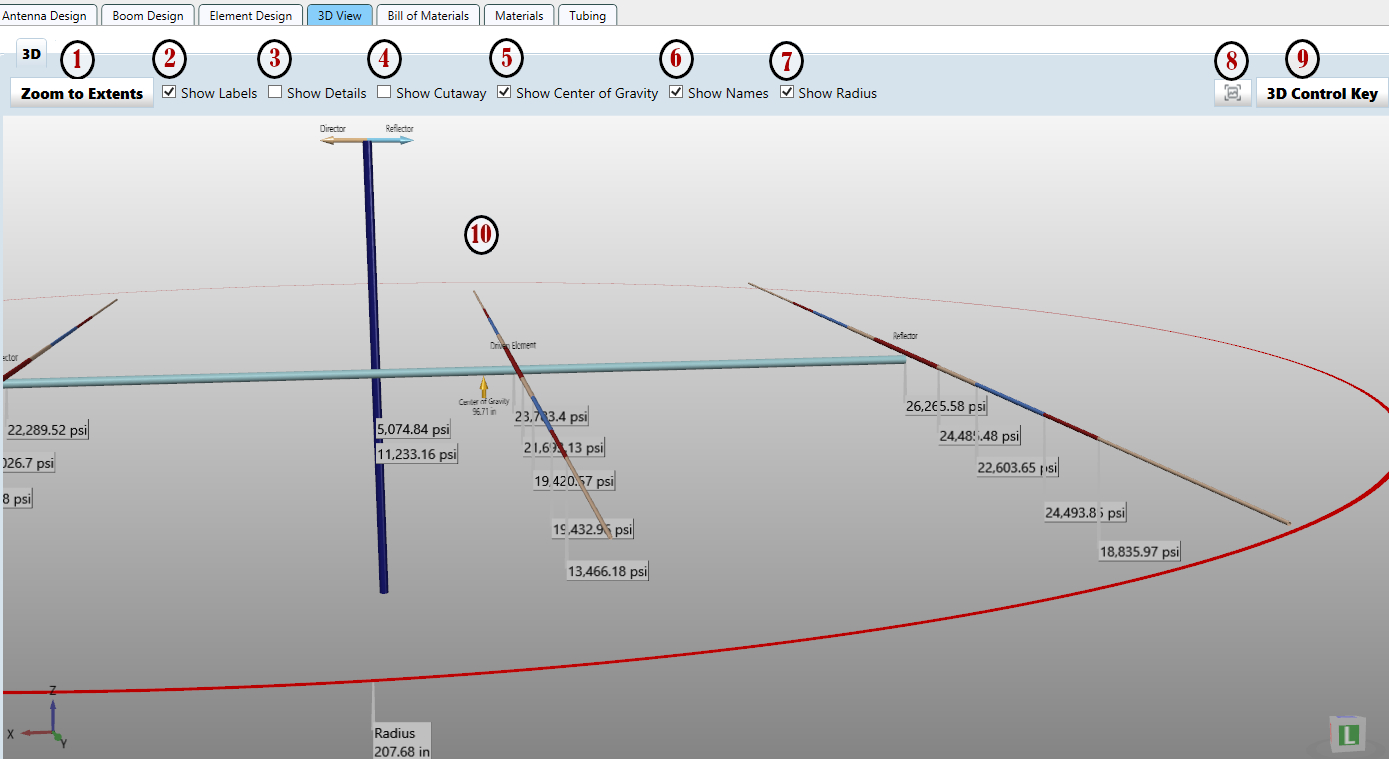
- Zoom to Extents Button - Clicking this button will reset the 3D View, putting the antenna in the center of the view and zoomed to fit everything on screen. This is a helpful action if you have manipulated the camera where it cannot see anything or if you want to easily reset after zooming in to check on a detail.
- Show Labels Checkbox - This option enables or disables the overlay labels that show stresses of each mechanical section and the radius information. Also included here is an indicator at the top of the mast/tower placeholder that shows which side of the boom is the reflector and director.
- Show Details Checkbox - Checking here will show the full detail on the mechanical sections used to calculate the shown stress values. Having this active makes for large labels, so it is recommended more for use when zoomed in on a portion of the design.
- Show Cutaway Checkbox - Use this option to view elements and the boom as half pieces of tubing to get an understanding of how they fit together in a cross-section view. Colors alternate to help distinguish the different pieces of tubing in use. See the Options section for details on how to change the colors in use.
- Show Center of Gravity Checkbox - When checked (on by default), YM will show an arrow below the boom to mark the location of the center of gravity for the antenna.
- Show Names Checkbox - YM shows your specified names for each of the elements above their mounting location on the boom. This can be useful for saving off screen shots for later use when constructing the actual antenna.
- Show Radius Checkbox - The red radius circle in the 3D View shows the furthest reach of boom plus element from the center mounting location, but it can be disabled here if needed.
- Screen Shot Button - Use this button to save off a copy of the current view to an image file. Some other files types are available here if you want to use the actual 3D model in other software.
- 3D Control Key - Clicking this button will display a separate window with simple images showing how to control the camera in the 3D View. The controls are:
- Rotate - Use the arrow keys or hold the right mouse button down and move the mouse to rotate around the antenna.
- Pan - Hold the shift key, then use the arrow keys or hold the right mouse button down and move the mouse to move/pan the antenna.
- Zoom - Scroll the mouse wheel or use the page up / down keys to zoom in or out on the design.
- Recenter - Double click the right mouse button to move the antenna back to the center of the 3D View.
- Zoom to Extents - Double click the middle mouse button to reset the whole 3D View.
- 3D Model - In this section not only is the antenna design shown and manipulated using the tools above, but in the corners you can see an axis and box that give you a reference to the 3D space. The box includes reference names to directions you are looking at the design from: (F)ront {Director End}, (B)ack {Reflector End}, (L)eft, (R)ight, (T)op, and (B)ottom. Clicking on any of these box surfaces will align your camera view to be looking at your antenna from that direction - note that it does not adjust the zoom level when doing so.